显示标签为“xentry”的博文。显示所有博文

2020年3月17日星期二

MB-Star Diagnostic XENTRY Software “A fault has Occured” Solution

What is MB Star Diagnostic?
Mercedes-Benz Scanner MB Star Diagnostic help you read and erase fault codes from any control unit in your Mercedes-Benz.If MB–Star Diagnostic works functionally, you can achieve a lot of things like reading the actual configurations in each system, streaming real time sensor data and etc.
What will happen if Diagnostic XENTRY Software is outdated?
However, sometimes you may forget to update MB–Star Diagnostic version. Or maybe you just don’t know why the error “A fault has occured!”below will occurred.Here offers your desired solution!
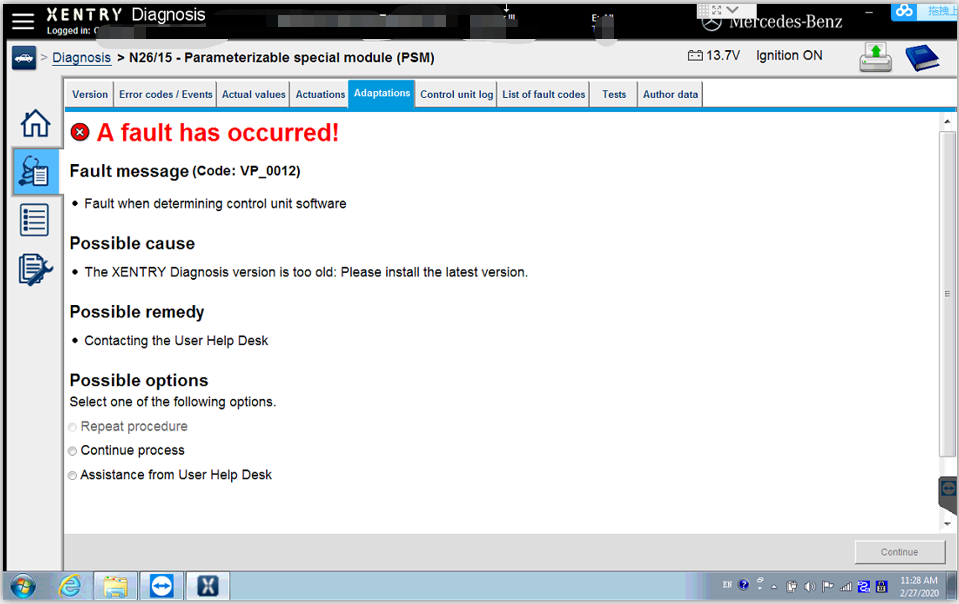
MB-Star-Diagnostic-XENTRY-Software-solution-step-1
What can you do to update MB–Star Diagnostic version?
In normal cases,you can change MB-Star Diagnostic version to address the problem for MB-Star Diagnostic of 2018/2019 version.
The targeted file is in C:\Program Files (x86)\Mercedes-Benz\SDFlash\Release\PKW.Notice:if you have already input your account info, you don’t need to exit.
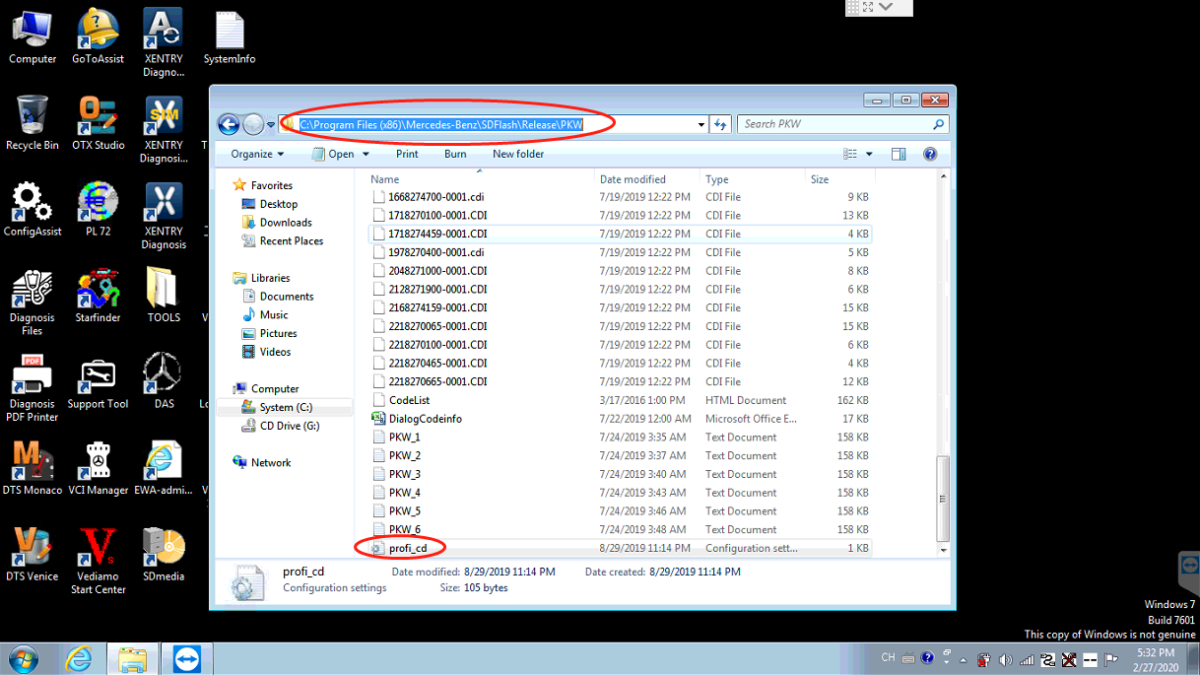
MB-Star-Diagnostic-XENTRY-Software-solution-step-2
After that, please double click the file, update it to the latest file and save it. At last, you can open the file and choose “Continue process”, then choose “continue”.
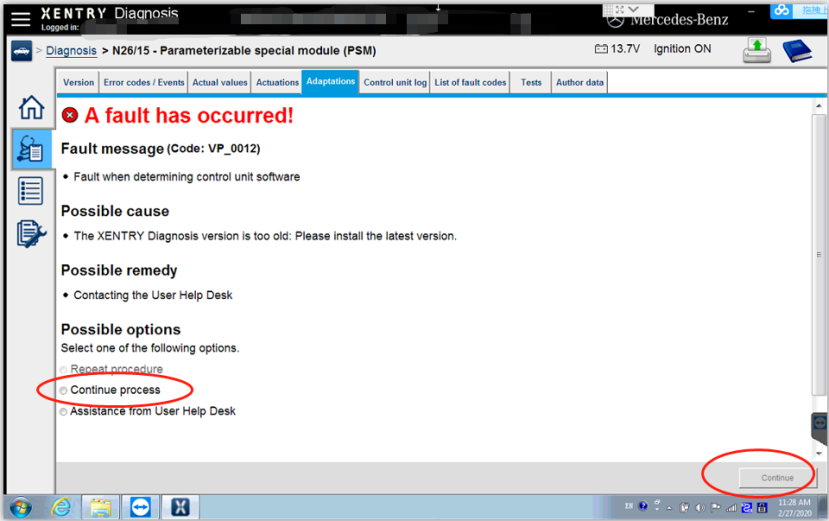
MB-Star-Diagnostic-XENTRY-Software-solution-step-5
During this process,please check the red circled ones and update MB–Star Diagnostic to the latest version.
ex.if the latest MB–Star Diagnostic is of 2019/12,you can change the date to its responding ones.
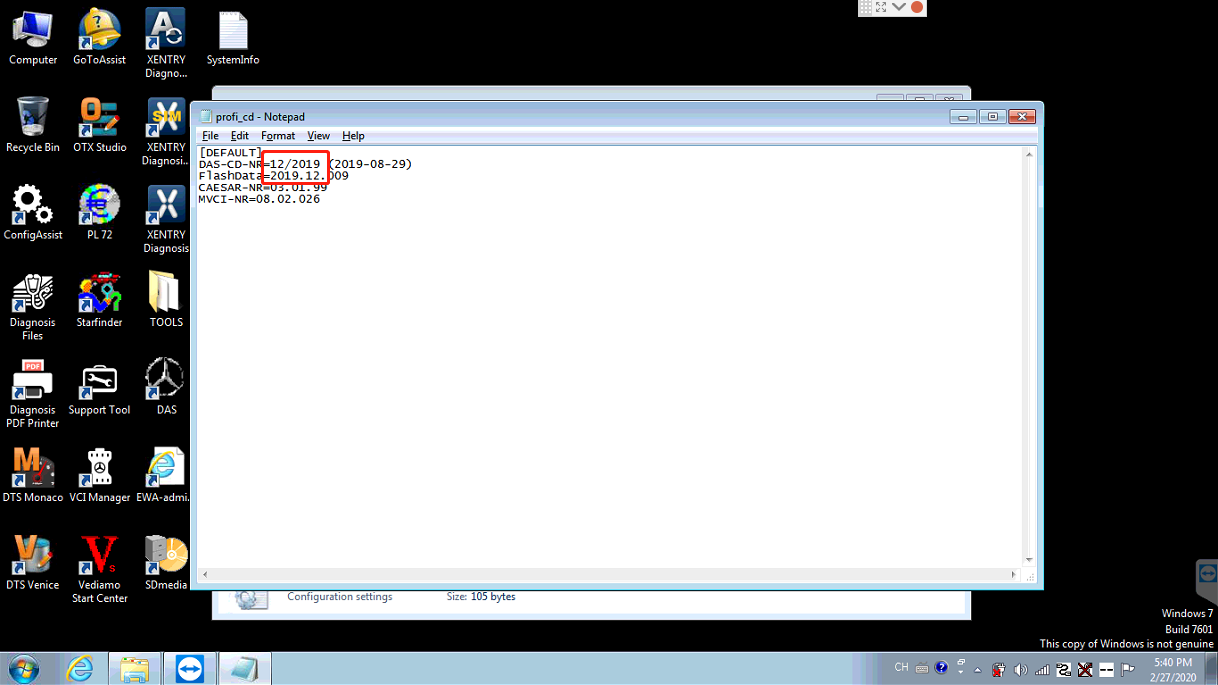
MB-Star-Diagnostic-XENTRY-Software-solution-step-4
But what if the same error showing “A fault has occured” keeps popping up?As you may see in the method:C:\Program Files (x86)\Mercedes-Benz\SDFlash\Release\PKW, PKW means the car type.
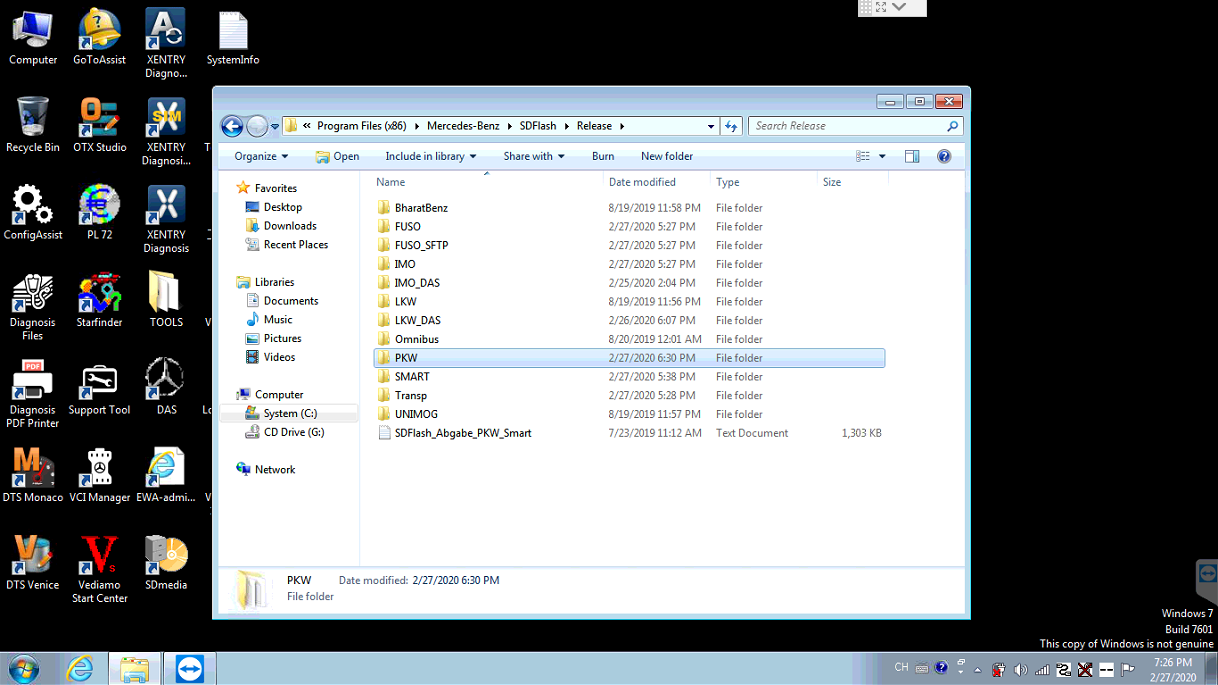
MB-Star-Diagnostic-XENTRY-Software-solution-step-6
So in this case, you need to make sure your car’s type.
If your car is a Fuso,please open the profi_cd file in the FUSO folder and update MB XENTRY Diagnose to the latest version. If your car is a SMART, you can open the profi_cd file in the SMART folder and update it to the latest version.
MB-Star-Diagnostic-XENTRY-Software-solution-step-3
Still totally have no idea about where to find the right file of MB–Star Diagnostic? Why not open Release in C:\Program Files (x86)\Mercedes-Benz\SDFlash\Release. You open every file in release folder and update every file.

2019年6月29日星期六

SD Connect C4 WIS VIN not found, datacard not display

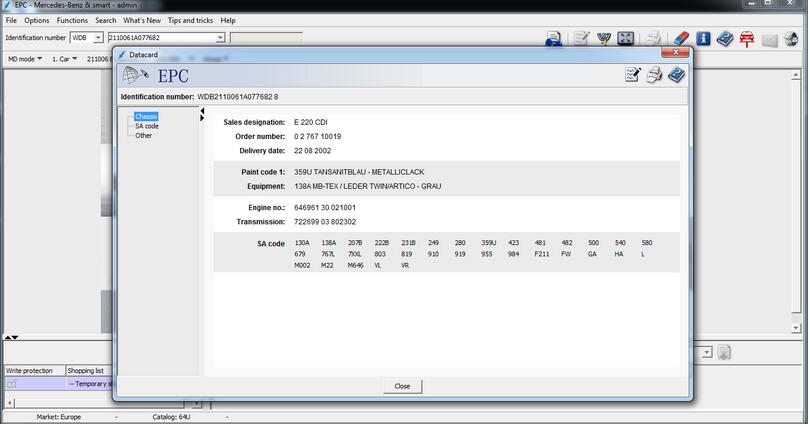
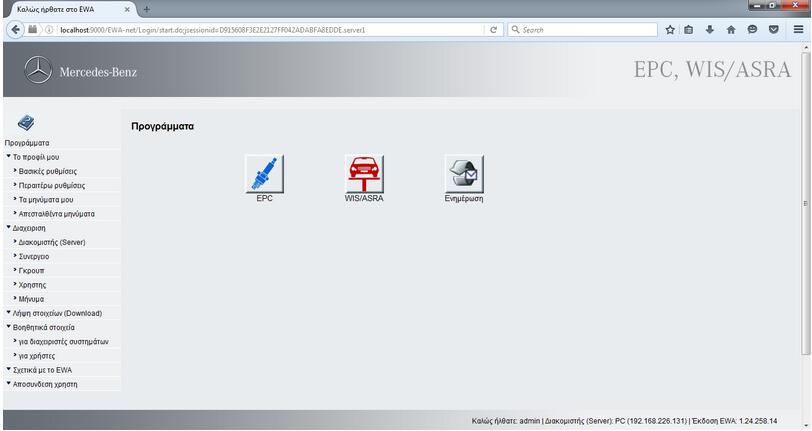
I have installed EPC 02/2016 and WIS 04/2016 in ewa-net.. But, got into some troubles with WIS datacard option that is grey. Luckily, I managed to solve it. Here is all my experience with MB SD Connect Compact 4 WIS & EPC.
epc_wisbmw-epc-software-1 epc_wisbmw-epc-software-2
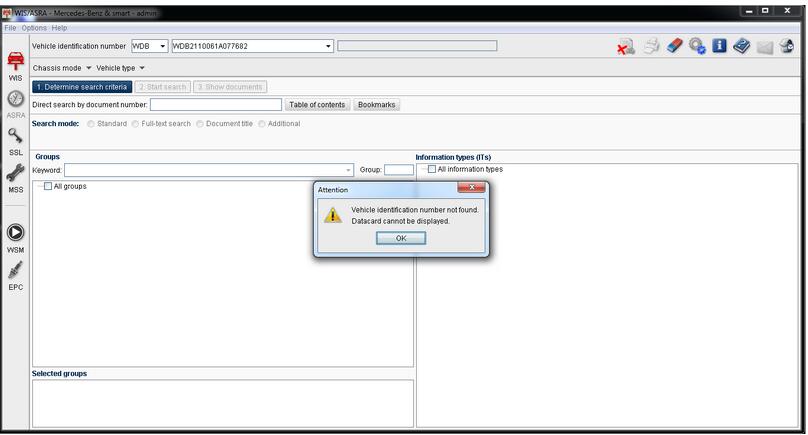
EPC works fine but in WIS when it give VIN, i have this error message:
vehicle identification number not found.
datacard cannot be displayed.
epc_wisbmw-epc-software-3
I opened with my Notepad the wis_cfg.xml file from the EWA-NET Folder\Config &
searched the word: “datacardurl” replaces the lan ip address with “localhost” in the
2x points that i watched:
<PARAMETER name=”gateway”>EWA-net/ewa-net</PARAMETER>
<PARAMETER name=”datacardUrl”>http://PC.localdomain:9000/EPC-net/datacardapi</PARAMETER>
<!– URL of datacard service for Snap On’s datacard view: –>
<PARAMETER name=”datacard_V2_Url”>http://PC.localdomain:9000/EPC-net/dcapi</PARAMETER>
and i changed it to:
<PARAMETER name=”gateway”>EWA-net/ewa-net</PARAMETER>
<PARAMETER name=”datacardUrl”>localhost:9000/EPC-net/datacardapi</PARAMETER>
<!– URL of datacard service for Snap On’s datacard view: –>
<PARAMETER name=”datacard_V2_Url”>localhost:9000/EPC-net/dcapi</PARAMETER>
The wrong part is http://.
I remove it
Save the .xml file and Reboot the PC!
All works fine now!!!!
I think I should buy items from a more professional seller like obd2tool.com. My brother got MB SD connect C4 there and never got into troubles like me. His WIS and EPC with SDconnect also works good also.

2018年4月21日星期六

How to use Xentry DAS on AVDI passthru


10-1
What is the AVDI recognized by Xentry?
Xentry Passthru is different from from regular Xentry openshell. Xentry passthru does not use SDconnect toolkit. When you launch the program it will give you a dropdown where you can choose which J2534 device (can be found at http://www.obd2tool.com/) you want to use.
How to use Xentry Passthru?
If you got the Xentry Passthru installed, there is a tool which will do the dirty work for you.
Normally it is not linked or doesnt have desktop shortcut but resides (at least in my installation)
under
C:\Program Files (x86)\Mercedes-Benz\xentry\bin\SelectPTDevice
IF you have installed your passthru (would that be AVDI or anything else) with correct drivers, registry entries etc it will just present you with list of options and you select your VCI from dropdown list.
Heard good things about fvdi abrites commander J2534 compatibility (real thing, don’t know about clones) so it shouldn’t be a big deal. Recently i have tried to use BOSCH KTS560 as passthru and it works perfectly okay.
For curiosity, i did also test the 20-euro MiniVCI that gets normally bundled with Toyota techstream packages. to my surprise it also works albeit slow and sometimes freezes the application. This one can be actually made to work even with old DAS like 2009, 2012….it’s just matter of proper settings in cal.ini and slave.ini
For DAS/Xentry users:
Old thread – but do not run the SetPassThruDAS.exe, as it was written for DAS/Xentry for Windows XP, and not Openshell or star diagnose Xentry Passthru. All you need to do is install a fresh OS (Windows 7 Enterprise x86 or x64 SP1) ideally on a physical laptop, connect the AVDI device to the USB port and run the SetupInterface_yourserialnumber_PASSTHRU_xxxxxxx.exe and Next through the setup process. If you have a current version of the Passthru software, you will see a grayed out option for installing drivers for DAS that you cannot select, but do not be concerned about that. It will detect the AVDI, and install the appropriate J2534 dll files in the Windows\System32 directory. Then continue installing your Passthru software provided on the Blu-ray from Daimler. It will take a while to install, and once it verifies your hardware ID and installs your StartKey, launch Xentry Passthru from the icon it creates, and it will prompt you first thing as to what interface you want to use. You will see Abritus72 AVDI PT (your serial number here) in the drop down box. Select that device, and that is all their is to it. Xentry should automatically communicate with the vehicle.

http://obd2trade.com/2018/04/17/how-to-use-xentry-das-on-avdi-passthru/